


The powerful platform of AI-driven smart apps AIM iQ™ went live last week and we’re here to answer your questions about it. The app was created by a team with years of experience in the promotional products industry, so every tool was built with real distributor workflows in mind. Our first tip for new users is that you can access all 4 tools—Logo Finder, Product Search, Inventory Lookup, and Product Mock Up—completely for free.
Even if you’ve already started using these tools, read on for features and tips that may have gone under your radar.
1. Go Wild with AI Editing


|
Maybe all you need is a realistic t-shirt mock-up with a logo, but how much more impressed would your clients be if you showed them that mock-up on a runner at a relay race, just like the one they’re sponsoring? Creating that custom visual is as simple as typing a prompt into the area marked “AI Editing” on the product mock-up page. |
|
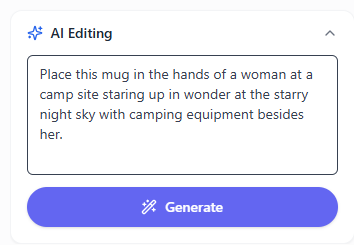
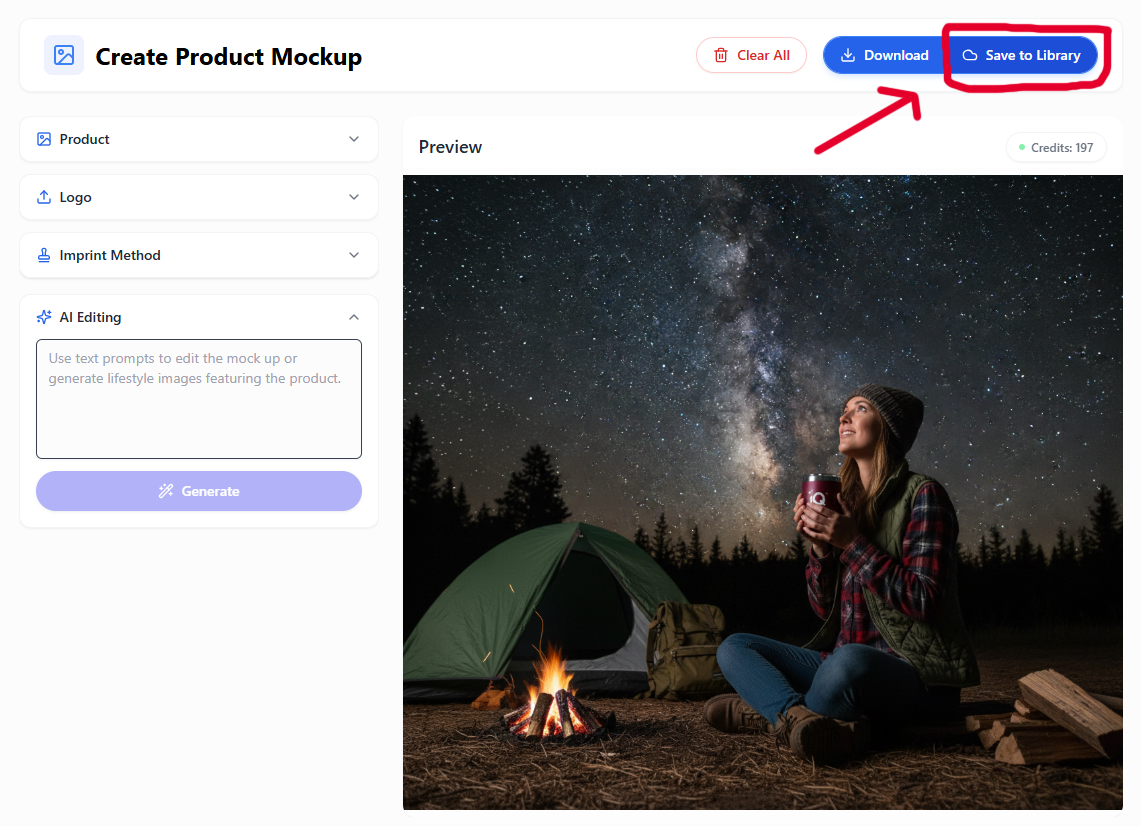
So, get creative with it! You can type out longer prompts that include details about atmospheric lighting, set decorations, and facial expressions of the person using the product. For example, “Place this mug in the hands of a woman at a camp site staring up in wonder at the starry night sky with camping equipment beside her.” It’s okay to be simple with it too if you don’t have a specific scene in mind. For example, “Place this sunscreen on a beach.”
Don’t forget that you can also adjust the imprint method if you need etching, embroidery, debossing, etc.
2. Don’t Sleep on Your Library
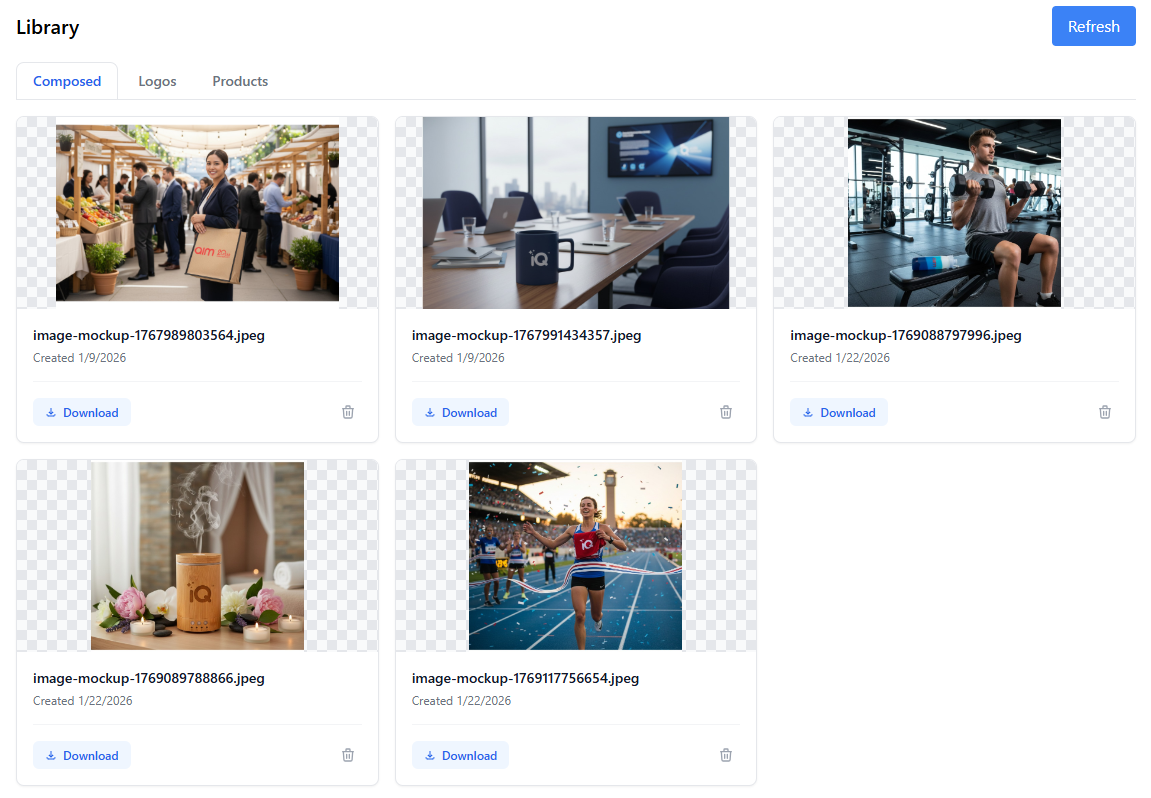
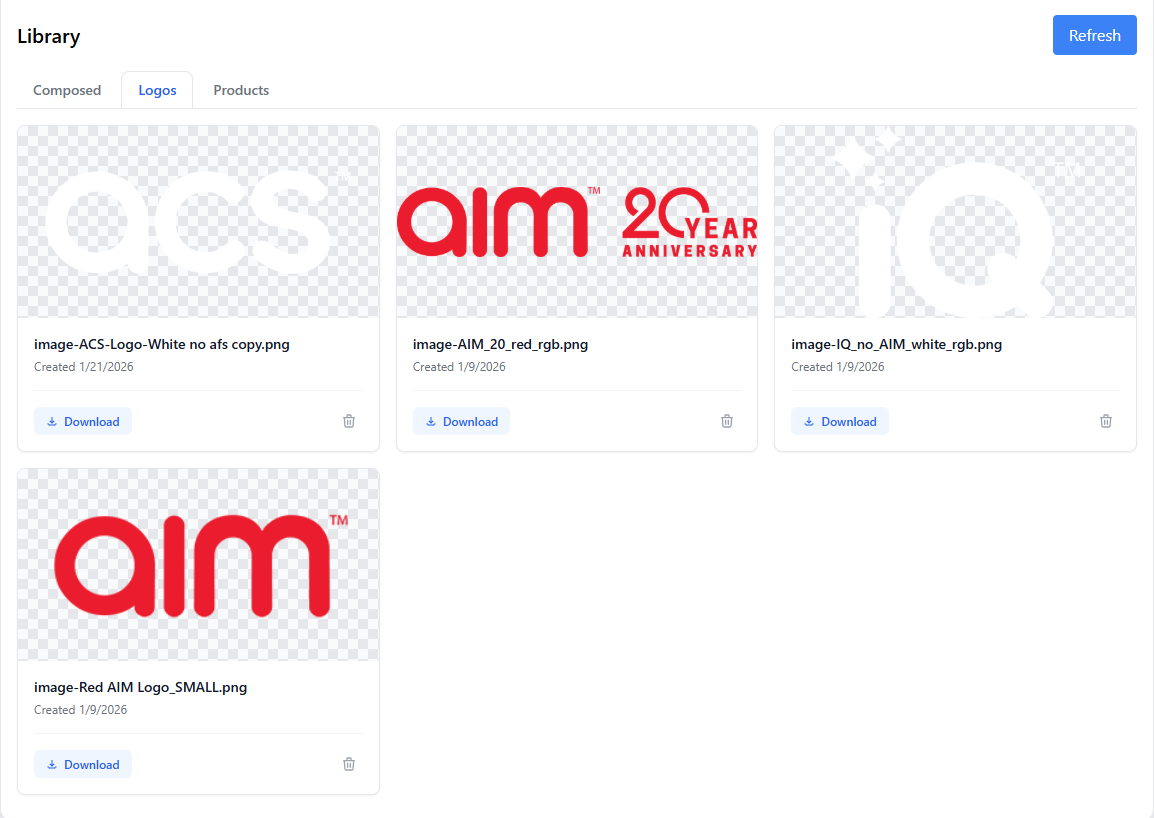
When you first start using AIM iQ™, you might upload your logo each time you want to generate a product mock-up, but you don’t have to. Use Logo Finder to search logos or upload logos you already have from the same page. You can then store those logos in your library for future use with the “Download/Add to Library” button at the bottom of the page. Getting your frequent client logos uploaded upfront can save you time in the long run.
|
The library also works for storing the lifestyle product mock-ups you create. That way, you have them all in one convenient place and don’t lose them in your downloads folder. It can also be fun to show off your library to clients who don’t have a specific idea for merch in mind to better help them visualize lots of products in a lifestyle environment. To save an image to your library, just click the button in the upper right corner next to the download button. |
|
3. Simplify Your Searches
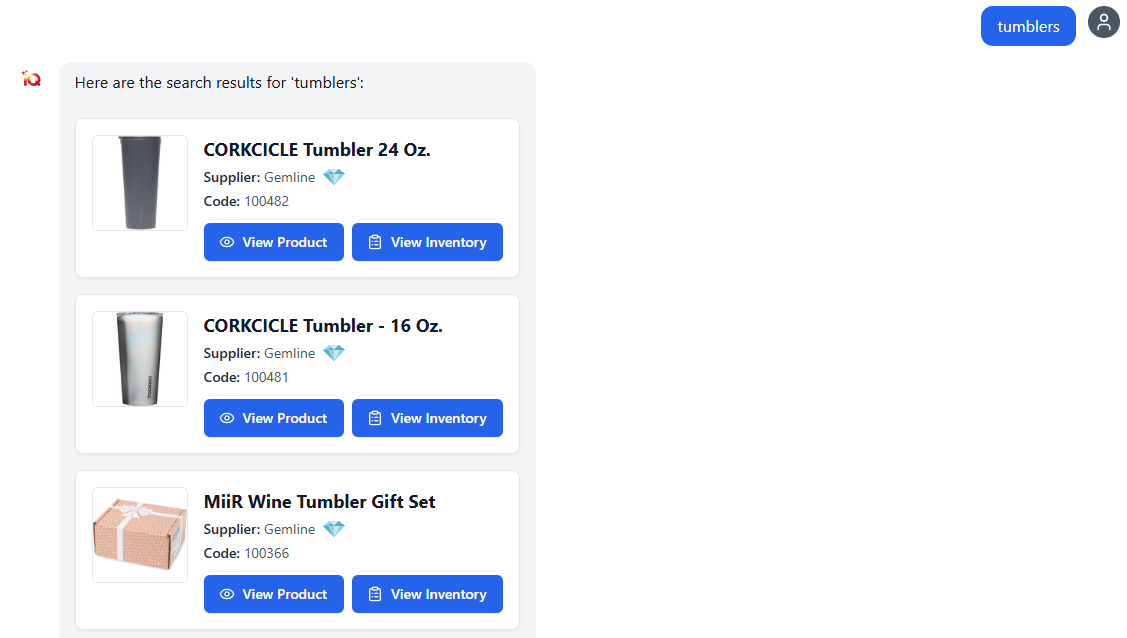
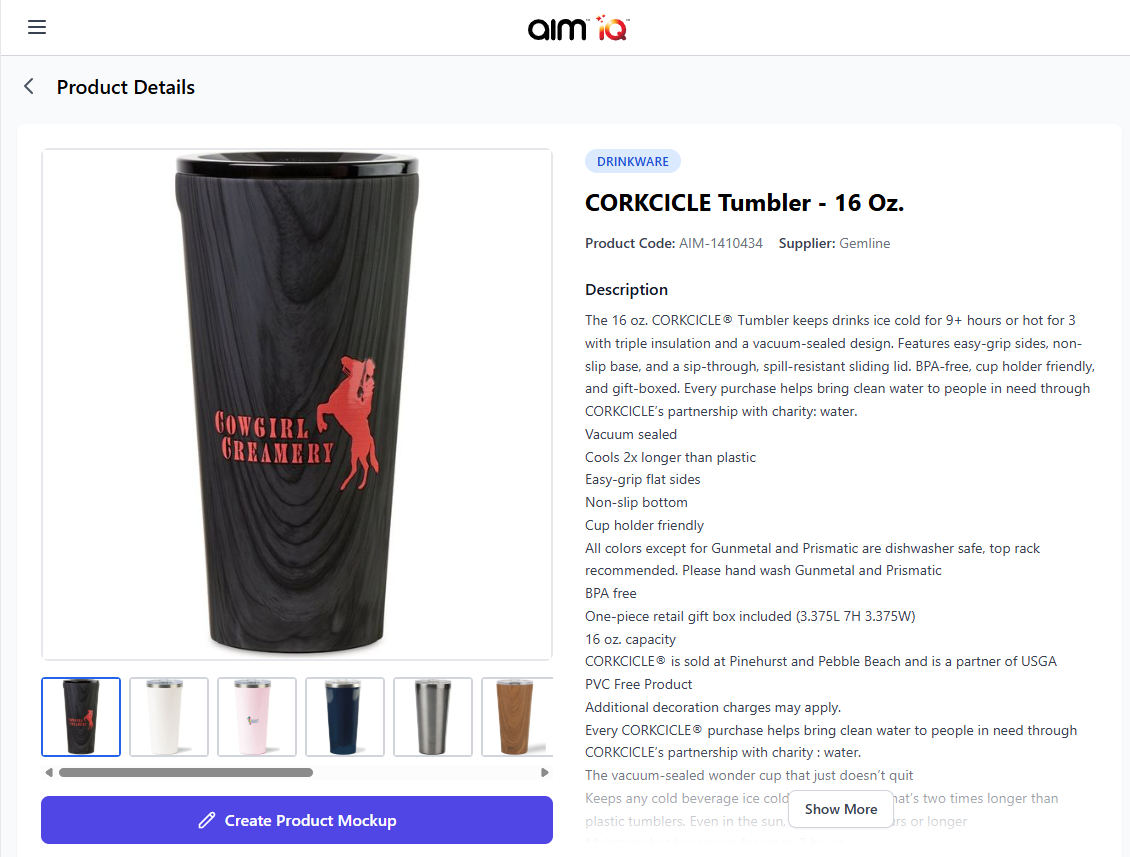
Unlike lifestyle image generation, you’ll have better luck with the product search if you keep it simple. The search was designed to respond to typical search phrases for specific product names like “tumblers,” “blue ballpoint pens,” or “snapback hat with embroidery.” You can include search terms like color, material, or decoration style, but if you don’t get the results you’re looking for, try again with a shorter search phrase.
The cool thing about generative AI is that it sometimes works in ways even its developers don’t anticipate. While testing it out, I discovered it can also respond to searches like “suggest products for a relay race” or “ideas for products to giveaway at outdoor summer events” with general suggestions. If you ever need inspiration, consider trying it out! Just keep in mind that the results may vary since this use of Product Search has not been fully tested. You can always refresh the page and try again. Speaking of which...
4. Refresh and Reset
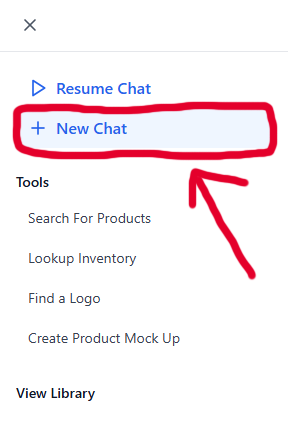
We all need to reset sometimes, even AIM iQ™. If you ever receive an odd or repetitive response from Product Search or Inventory Lookup, try refreshing the page or starting a new chat. These apps are only designed to respond to questions related to promo, and if you try to ask it something else or if your search is too broad, you might get the error message “I can only help with questions about promotional products, suppliers, logos, and inventory information.” Just start a new chat and try a search phrase that includes a specific product type.
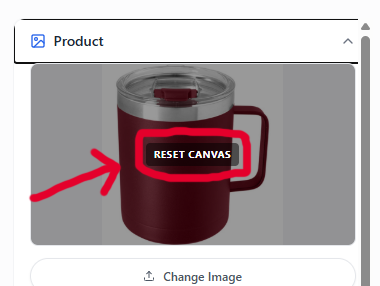
If you're using the Product Mock Up Tool and you change your mind about the virtual you’ve created, you can always go back to square one. In this case, you don’t want to refresh the page, just hover your mouse over the product image and click “reset canvas.” Just keep in mind if you’re using AI editing, you’ll need to spend another credit to regenerate the image. This can also be helpful if you want to generate different images of the same product—just make sure to download or save the image before you regenerate it.
Ready to Try it Yourself?
Subscribe for free at aimiq.ai and test out these tips yourself!